Navigation Basics
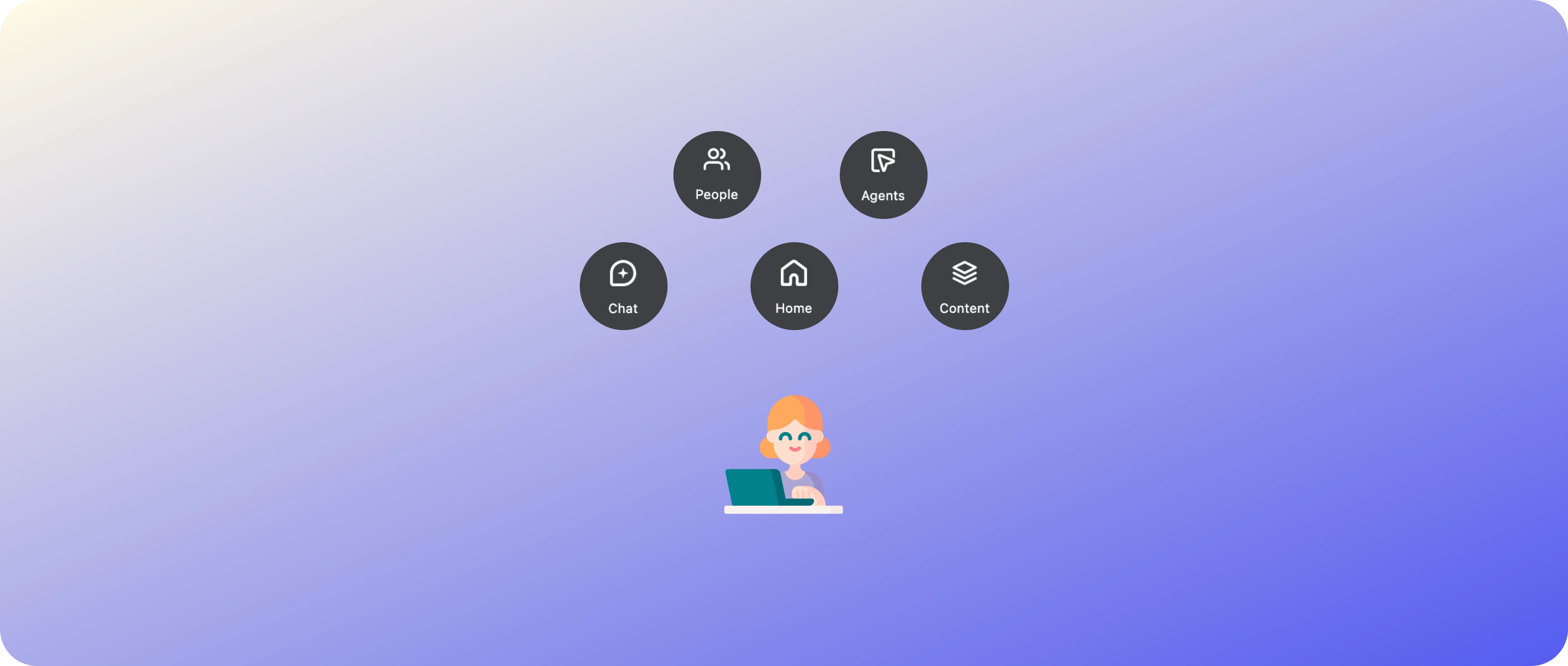
Once you're logged in, here's a quick orientation to help you find your way around Glean.
Home
The Home page is your starting point. It surfaces content that's relevant and trending across the organization, including:
- Suggested searches and recommended documents based on your persona's department and activity
- Announcements and pinned content from across Coverly
- Recent activity — documents you've recently viewed or interacted with
Search
The search bar at the top of every page is the primary way to find information across all connected apps. Just type a query — it can be keywords, a natural language question, or even a person's name.
- Results are ranked by relevance, personalized to your persona's role and permissions
- Filters on the left let you narrow by app, date, author, document type, and more
- Quick actions on each result let you summarize, share, or open the document in its source app
Glean Assistant (Chat)
Click Assistant in the left sidebar to open Glean Assistant — an AI-powered chat interface that can:
- Answer questions using your company's knowledge base
- Summarize documents, emails, or threads
- Draft content like emails, messages, and reports
- Analyze uploaded files and data
- Take actions in connected apps
You can also attach files, paste URLs, and reference specific documents in your conversation.
Apps & Agents
- Agents — Find pre-built and custom AI agents in the Agent Library (accessible from the left sidebar). Agents are purpose-built assistants tailored to specific workflows (e.g. an IT Helpdesk agent, an HR FAQ agent, etc.)
- Agent Builder — Want to build your own? Click Create in the Agent Library to design a custom agent with specific instructions, knowledge sources, and tools
People Directory
Click People in the left sidebar to browse Coverly's employee directory. You can:
- Search for colleagues by name, title, or department
- View org charts and reporting structures
- See what topics someone has expertise in (based on their activity)
Settings & Profile
Click your profile avatar in the top-right corner to access:
- Profile — View your persona's details
- Preferences — Adjust language, notification, and display settings
- Sign Out — End your session and switch personas
Key Navigation Summary
| Where | What |
|---|---|
| Search bar (top) | Search across all apps and content |
| Home (left sidebar) | Personalized feed, recent activity, announcements |
| Assistant (left sidebar) | AI chat — ask questions, summarize, draft content |
| Agents (left sidebar) | Browse or build AI agents for specific workflows |
| People (left sidebar) | Employee directory and org chart |
| Profile (top-right avatar) | Account settings, preferences, sign out |